A push that sends is not the same as a push that works. It can arrive with a broken image, land on a platform you never configured, or open the wrong screen when someone taps it. Testing catches such things before your subscribers do.
This guide covers testing on all three platforms — web, Android, and iOS. The flow is the same everywhere: subscribe yourself as a test user, send yourself a push, then validate what happens after it arrives. Only the dashboard sections and the ID you send to change per platform.
Each step below covers the test instructions for web, Android, and iOS platforms.
Before you start
Your integration should already be complete for the platform you're testing. If anything here is missing, finish the setup guide for that platform first.
Web
- The NVECTA JavaScript snippet is on every page of your site.
- The service worker files are deployed to your site's root directory and publicly reachable.
- Safari certificates (CK.pem and .p12) are uploaded, if you're testing Safari.
- A permission prompt is configured under Settings > Web Push > Permission Prompt.
Setup guide: Push Notifications (Web) · Safari Web Push Certificate
Android
- The NVECTA Android SDK is integrated and initialised.
- Your FCM credentials are uploaded under Settings > App Push > Android — the private key JSON, Sender ID, and App ID.
- At least one notification channel exists. On Android 8.0+, a push sent without a valid channel is dropped silently and never reaches the tray.
- If your app targets Android 13+, the runtime notification permission is requested and granted.
Setup guides: Android Integration · Push Notifications (Android) · Register FCM Keys · Android Notification Channels · Notification Runtime Permission
iOS
- The NVECTA iOS SDK is integrated and initialised.
- Your APNS Auth Key (.p8) or APNS certificate is uploaded under Settings > App Push > iOS.
- The Push Notifications capability is enabled in Xcode, and your provisioning profile includes it.
- The Notification Service Extension is added, if you plan to send rich pushes with images.
- You have a physical device. The iOS Simulator does not receive APNS pushes.
Setup guides: iOS Integration · Push Notifications (iOS) · APNS Auth Keys · APNS Certificate · Notification Service Extension
Note
iOS environment mismatch is the most common test failure. A build signed for development registers against the APNS sandbox; a TestFlight or App Store build registers against production. If your dashboard is configured for one and your build targets the other, the push is accepted, reported as sent, and never arrives. Confirm which environment your test build is using before you debug anything else.
1. Isolate your test
Don't test against real subscribers.
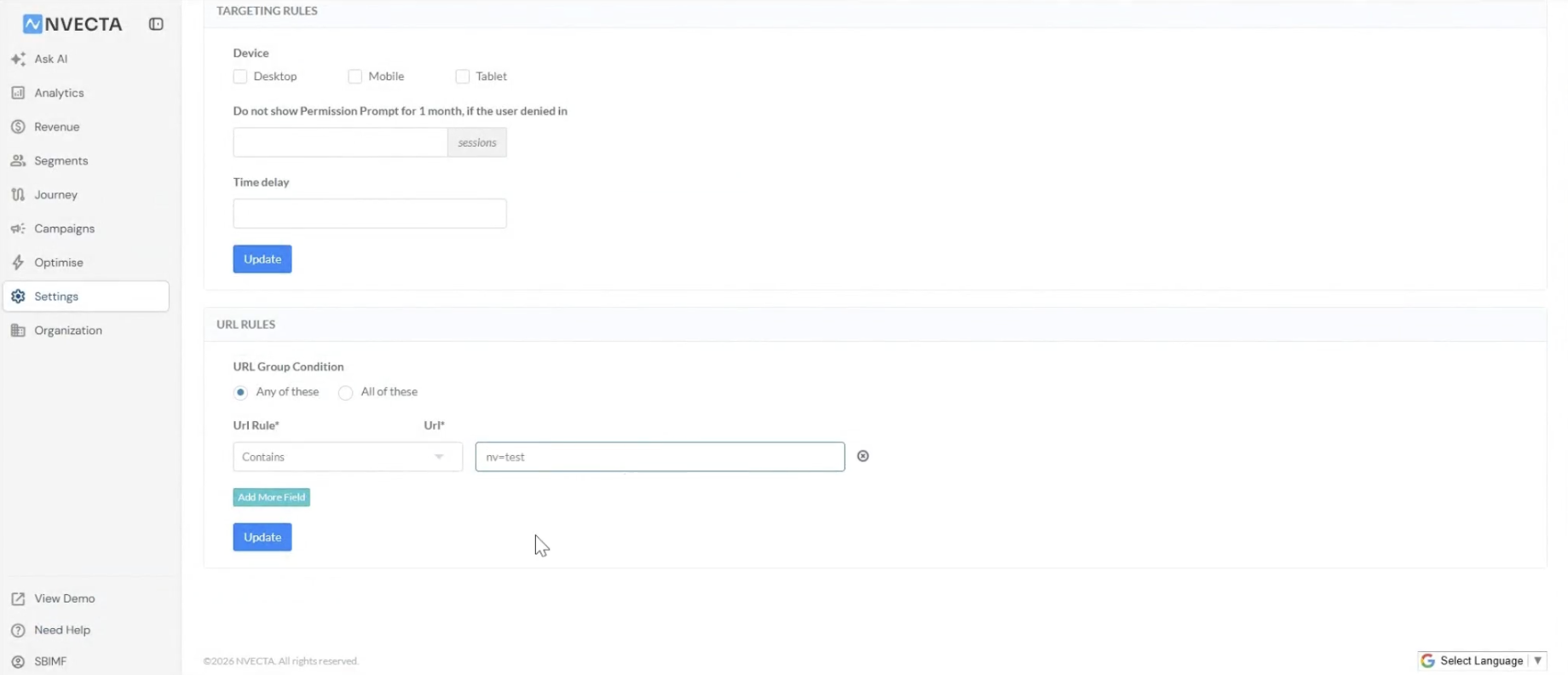
Web: restrict the permission prompt to a test URL before you subscribe. Go to Settings > Web Push > Targeting Rules > URL Rules and add a keyword such as nv=test with a Contains condition. The prompt now appears only on URLs carrying that parameter.
Android and iOS: there's no URL to gate, so isolate by build instead. Test on a debug or internal build, and always send to a specific subscriber ID rather than running the campaign. A campaign that goes live by accident reaches your whole install base.
2. Create a test subscriber
Web: open your site with the test parameter appended, for example https://www.example.com/?nv=test. The permission prompt appears. Click Allow on both your custom prompt and the browser's native dialog. Repeat on every browser and device you plan to send to — each is a separate subscriber with its own ID.
Android: install the build on a physical device and open the app. If you target Android 13+, the permission prompt appears — tap Allow. The SDK registers the device with FCM and creates the subscriber.
iOS: install the build on a physical device and open the app. Tap Allow on the system permission alert. The SDK registers with APNS and creates the subscriber.
Tip
Use a real device on both mobile platforms, not an emulator. Android emulators without Google Play Services can't receive FCM messages, and the iOS Simulator can't receive APNS at all.
If the prompt doesn't appear, you may have already answered it. See Reset your test subscription below.
3. Find your subscriber ID
Each platform stores subscribers in a different section of the dashboard.
Web: go to Campaigns > Web Push > Logs.
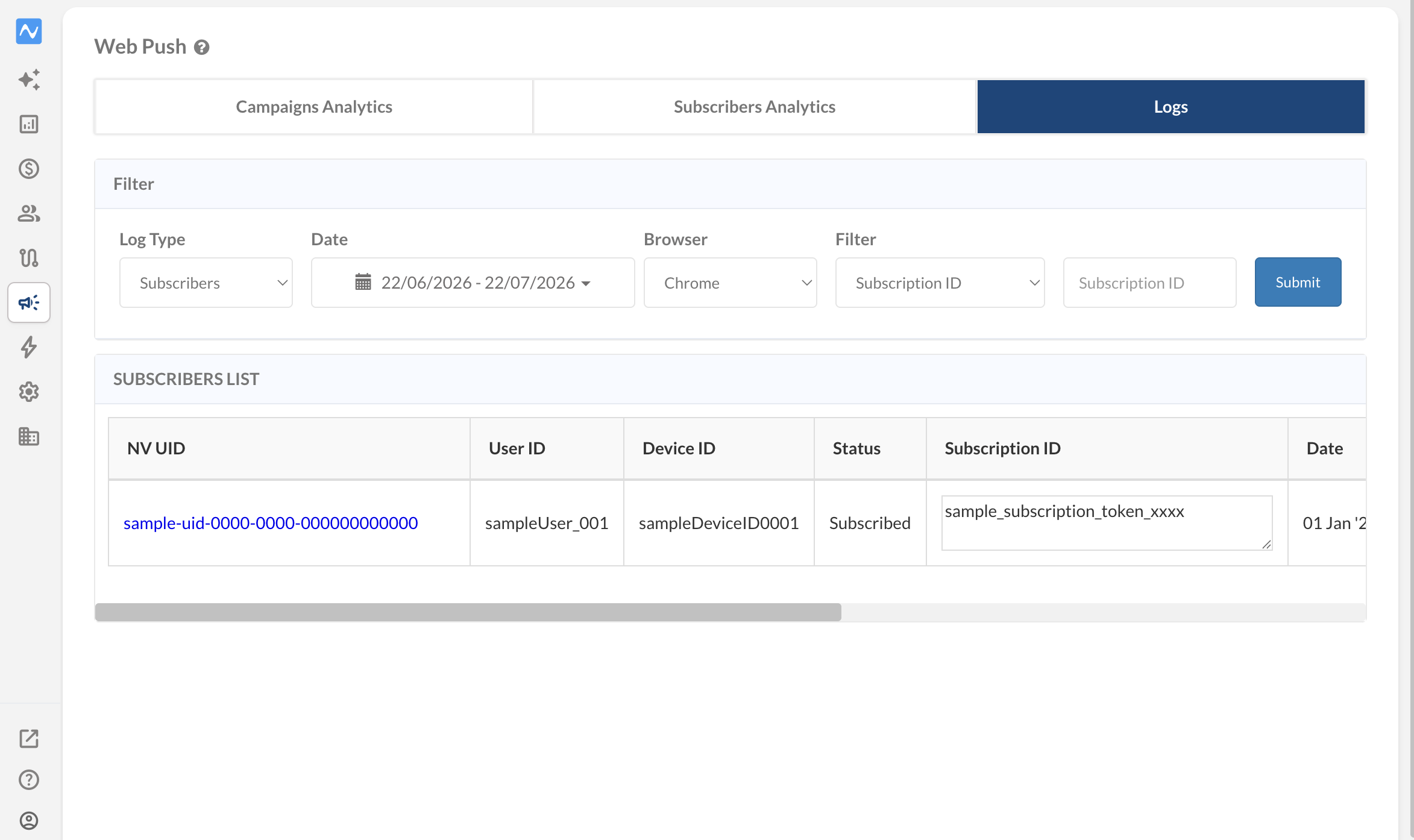
Android and iOS: go to Campaigns > App Push > Logs, then from the platform filter select Android or iOS.
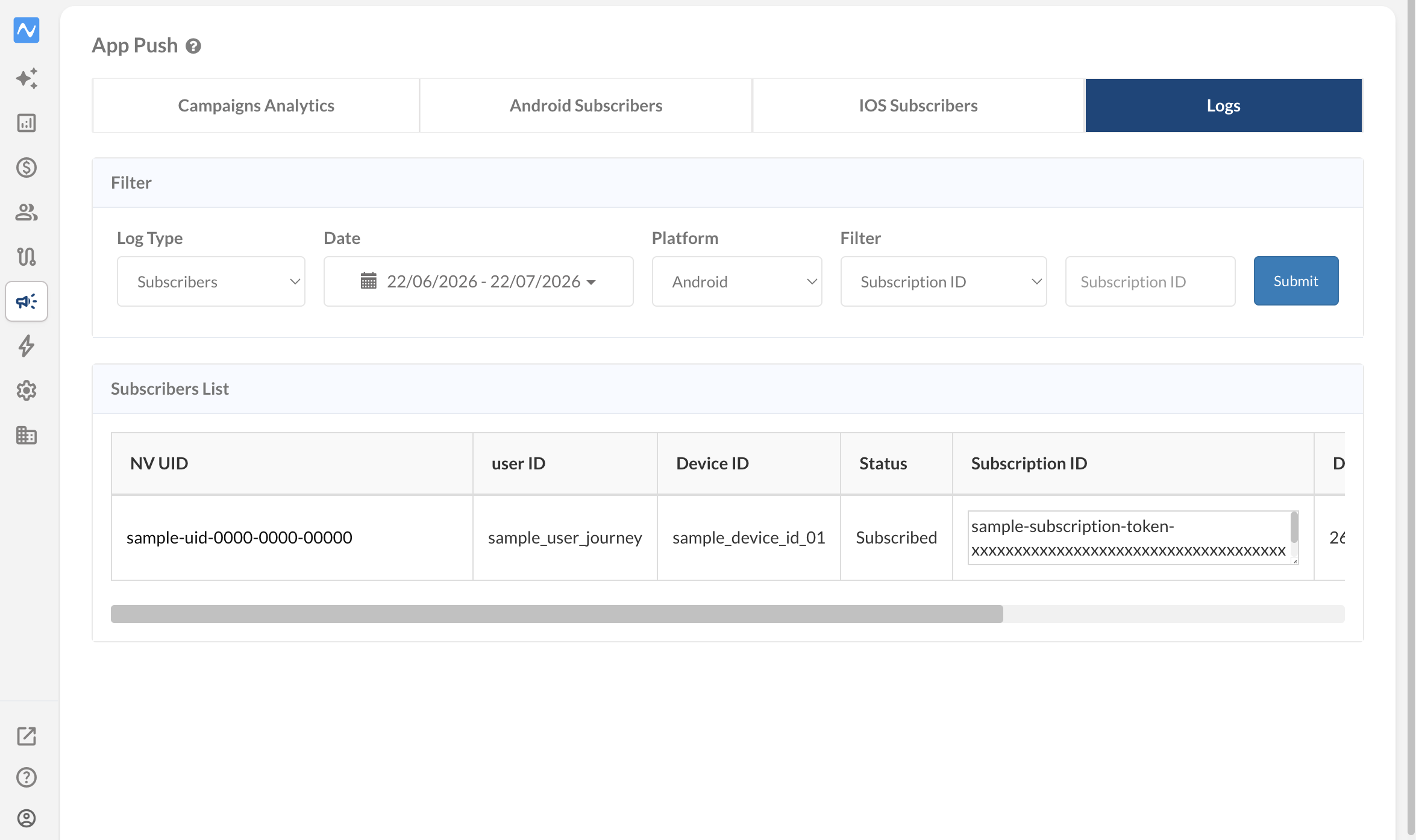
In both cases, copy the Subscription ID.
4. Confirm the subscription registered
Web: open Campaigns > Web Push > Subscribers analytics and check that the subscriber count has gone up.
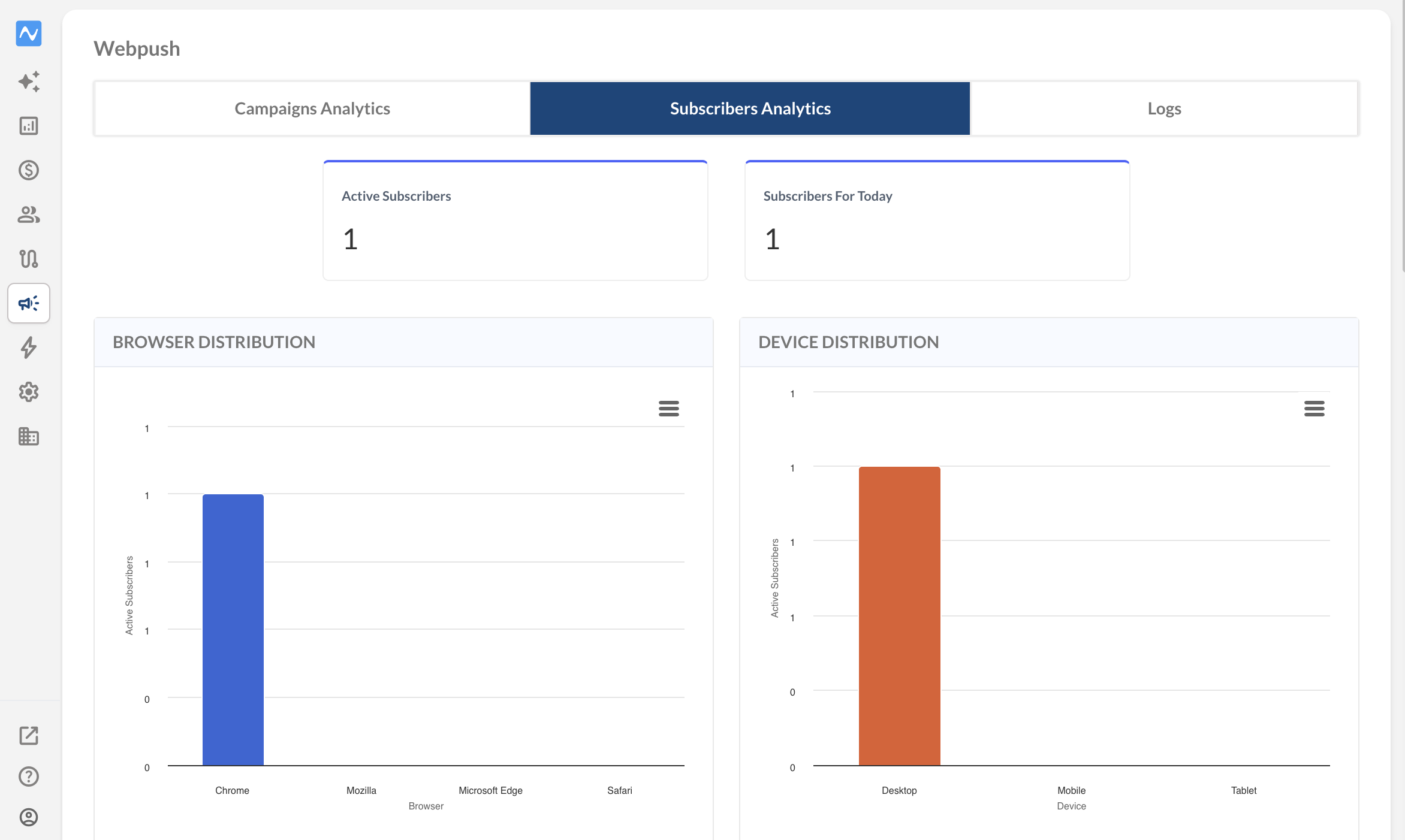
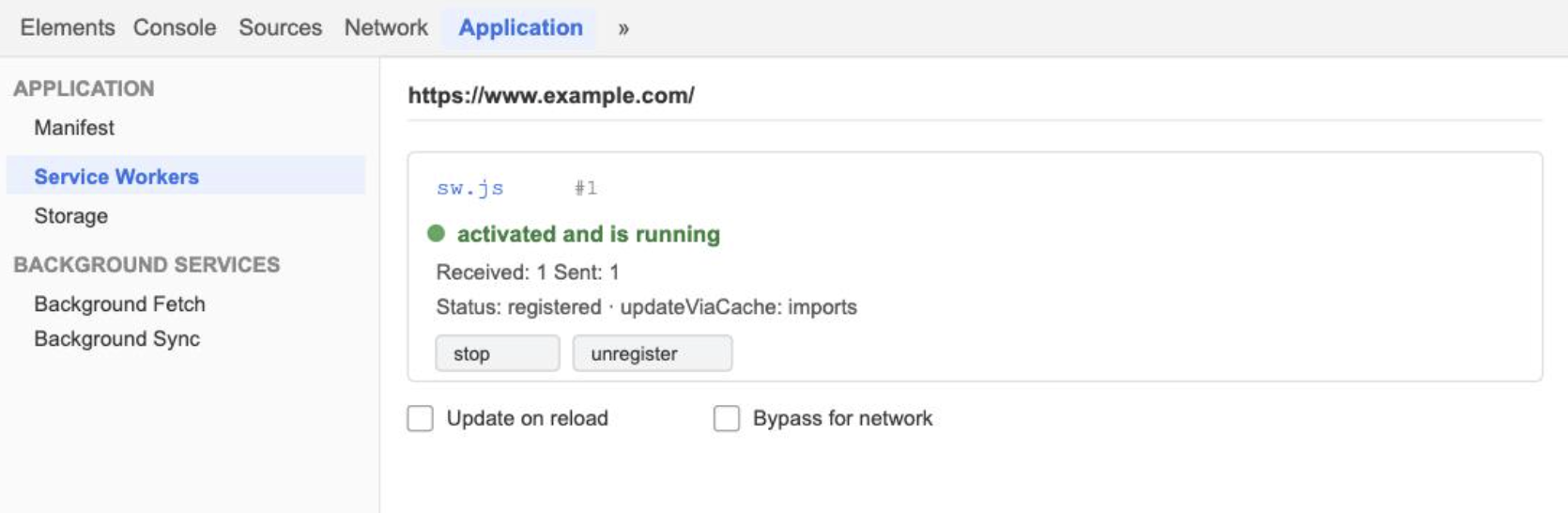
If it hasn't, the subscription never reached NVECTA — open DevTools (Inspect > Application > Service Workers) and confirm the service worker is registered and active on your domain. See Web Push Troubleshooting.
Android and iOS: open Campaigns > App Push > Android/iOS Subscribers and check that the subscriber count has gone up.
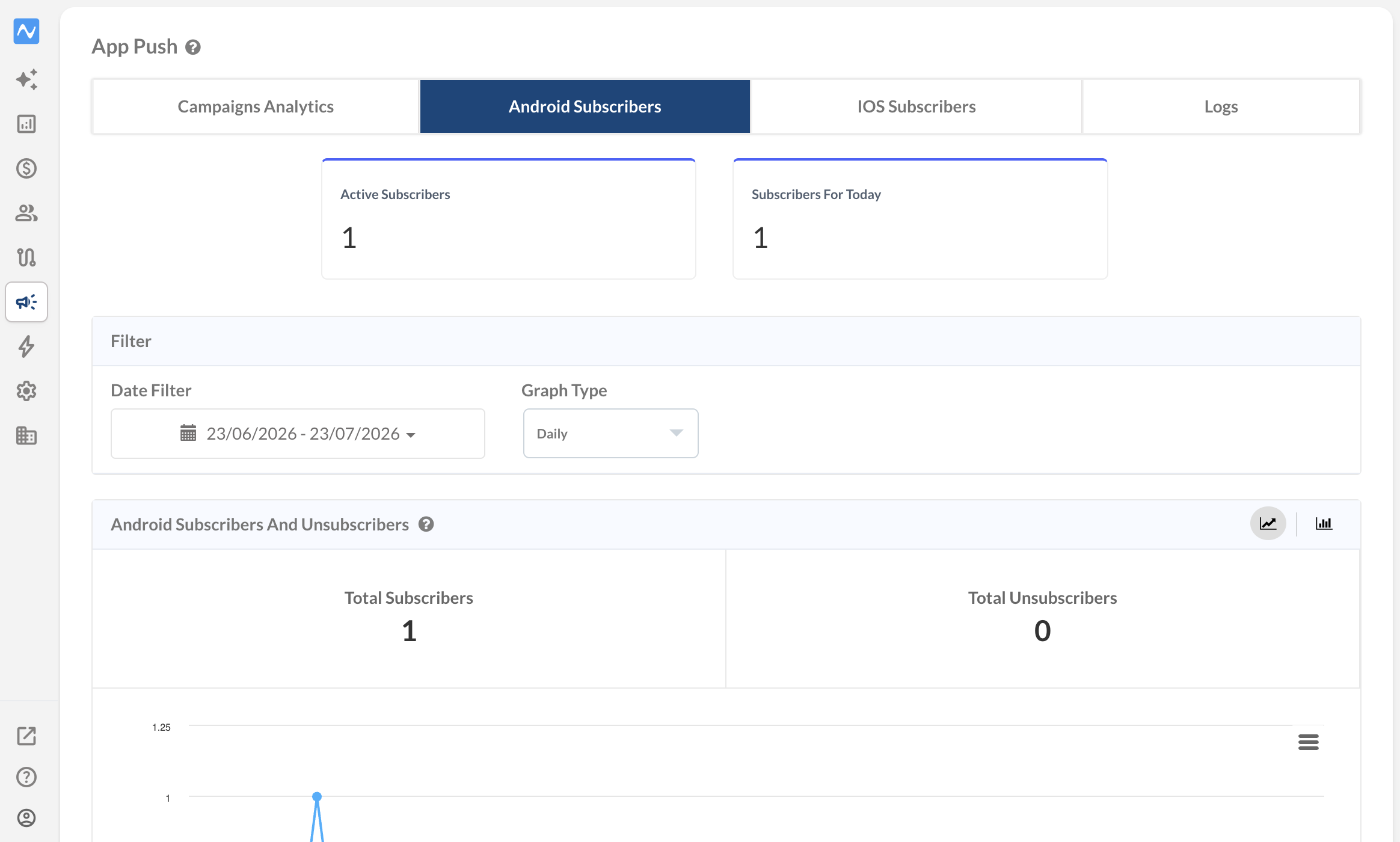
If it doesn't, the SDK never registered a token. Check that the SDK is initialised before you request permission, and that your FCM or APNS credentials are uploaded correctly in Settings > App Push.
A missing subscriber at this stage means every later step will fail. Don't move on until the device shows up.
5. Create a test campaign
Go to Campaigns > Create Campaign and select your campaign type:
- Web Push — for browser testing
- Android Push — for Android app testing
- iOS Push — for iOS app testing
Then pick the notification type. Web offers Standard and Rich. Android and iOS additionally offer Slider, GIF, Sticky, and Timer.
Test Standard and Rich at minimum. A Standard push is title, message, and icon. A Rich push adds a large image and action buttons, and it has more that can break. On mobile, test each additional type you plan to actually use.
Fill in the campaign details and step through the tabs (Description, Media, Advanced Options, Targeting Rules, and more) with Save And Continue.
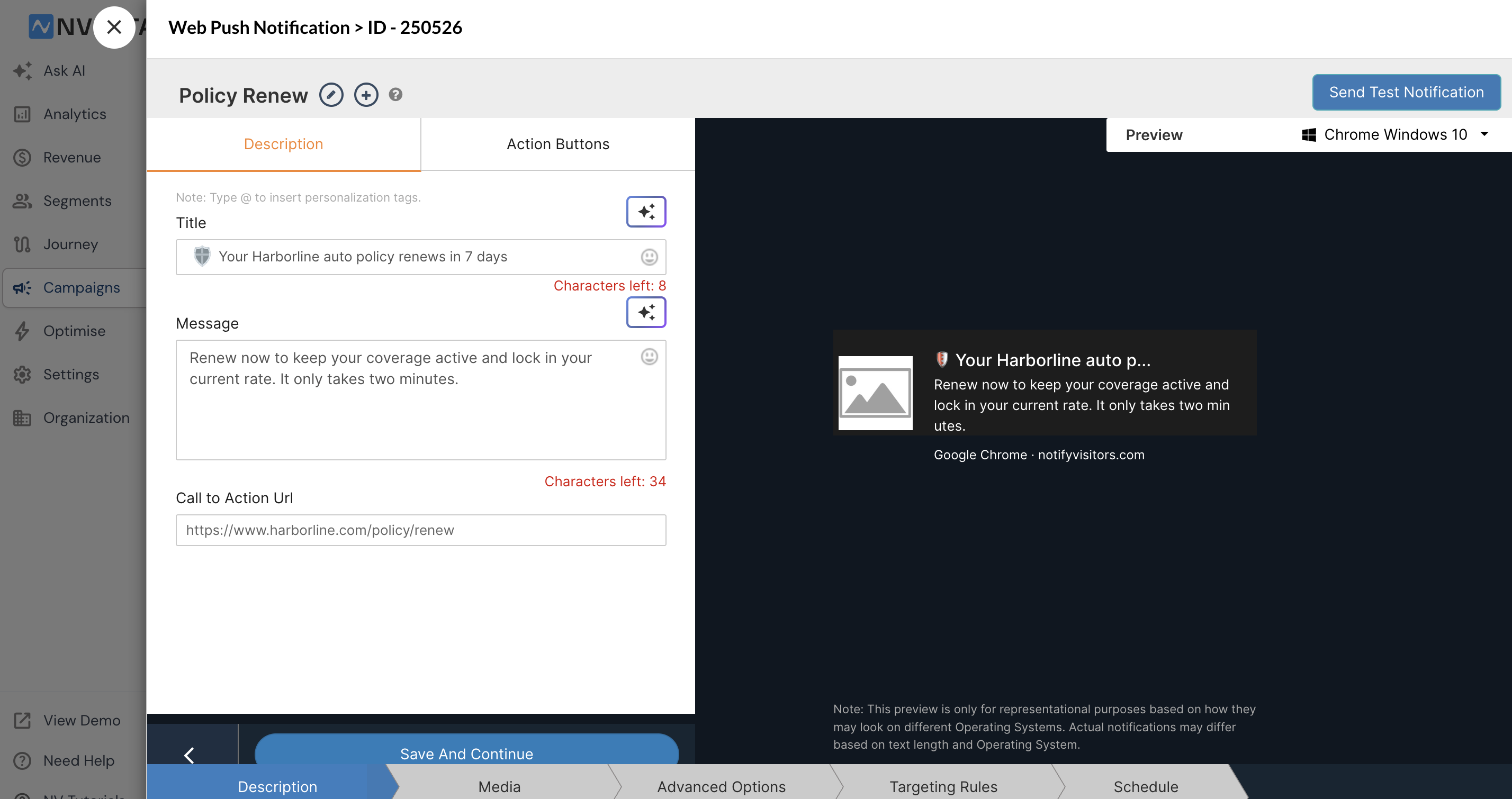
Fill in the destination carefully, because this is what you'll validate in step 7:
- Web — set the Call to Action URL to the real destination you'd send in production, tracking parameters included. A placeholder like your homepage tells you nothing about whether the click works.
- Android and iOS — set the deep link to the real in-app screen, not just the app launch. Use the same key value pairs your app reads in production. See Page Redirection/Navigation for how the app handles the payload.
- Android — select the notification channel under Advanced Options. A channel that doesn't exist on the device means the push is dropped silently.
Tip
Put something identifiable in the title, like TEST 1 — 14:20. When you're firing several tests in a row, you'll want to know which one arrived.
6. Send the test notification
With the campaign open, click Send Test Notification (top right).
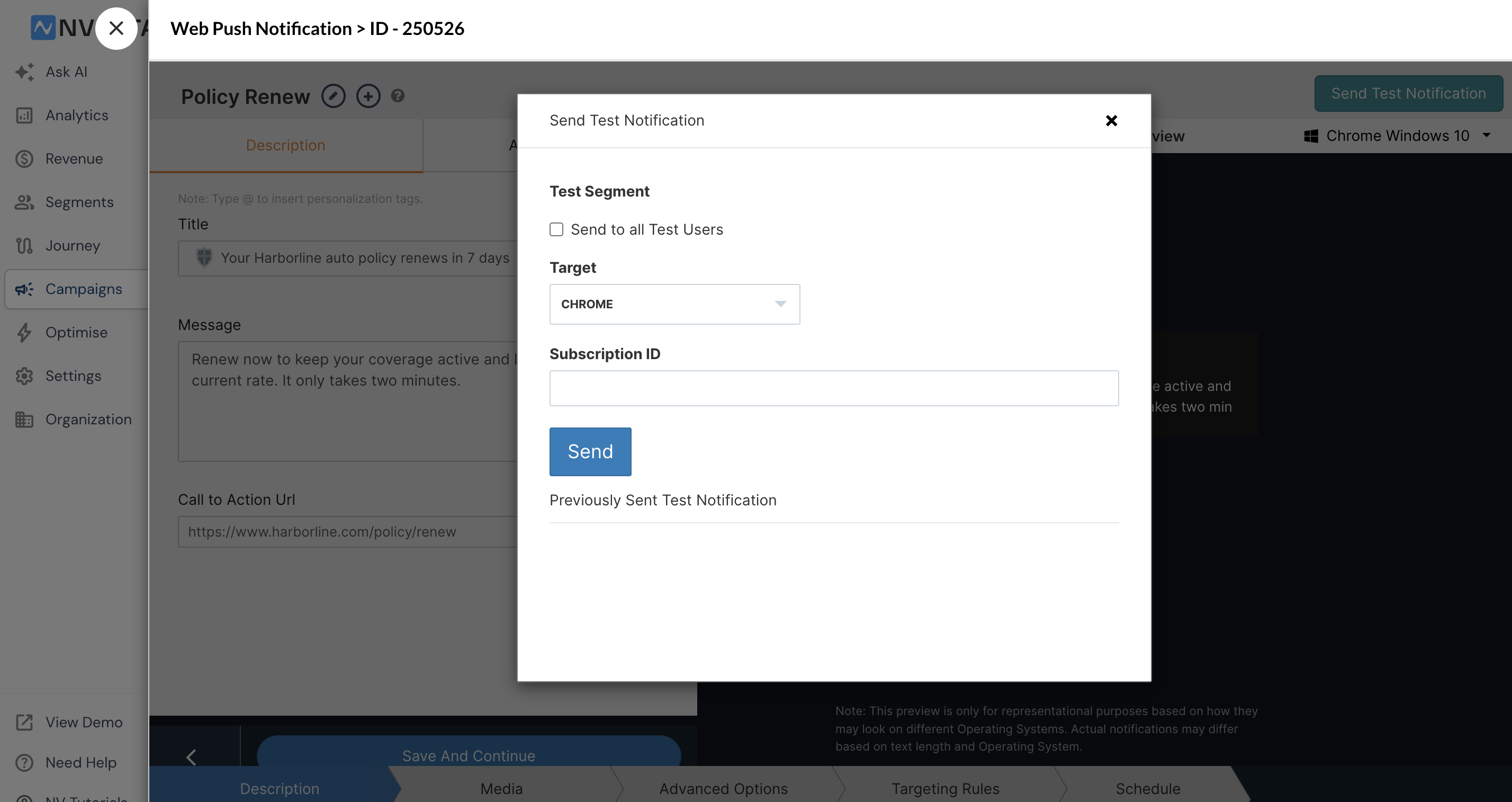
Web: under Target, select the browser you subscribed with (for example Chrome), enter your Subscription ID, and click Send. To fire at every test subscriber at once, tick Send to all Test Users instead of entering an ID.
Android and iOS: the flow is the same. Select the platform, enter the Subscription ID of your test device, and send. As on web, you can send to all registered test users at once instead of entering a single ID.
7. Validate the notification
Delivery is the first check, not the last one. Work through all five on every platform.
7.1 Delivery
The notification should appear within a few seconds. If it doesn't:
- Web: confirm the Target browser matches the browser you actually subscribed with. Sending a Chrome subscription ID to a Safari target produces no notification and no obvious error.
- Android: confirm the notification channel you selected exists in the app. Also check OEM battery restrictions — Xiaomi, Oppo, Vivo, and similar skins blacklist unrecognised apps from running in the background, which kills FCM delivery. See AutoStart.
- iOS: re-check the sandbox vs production environment. This is almost always the cause.
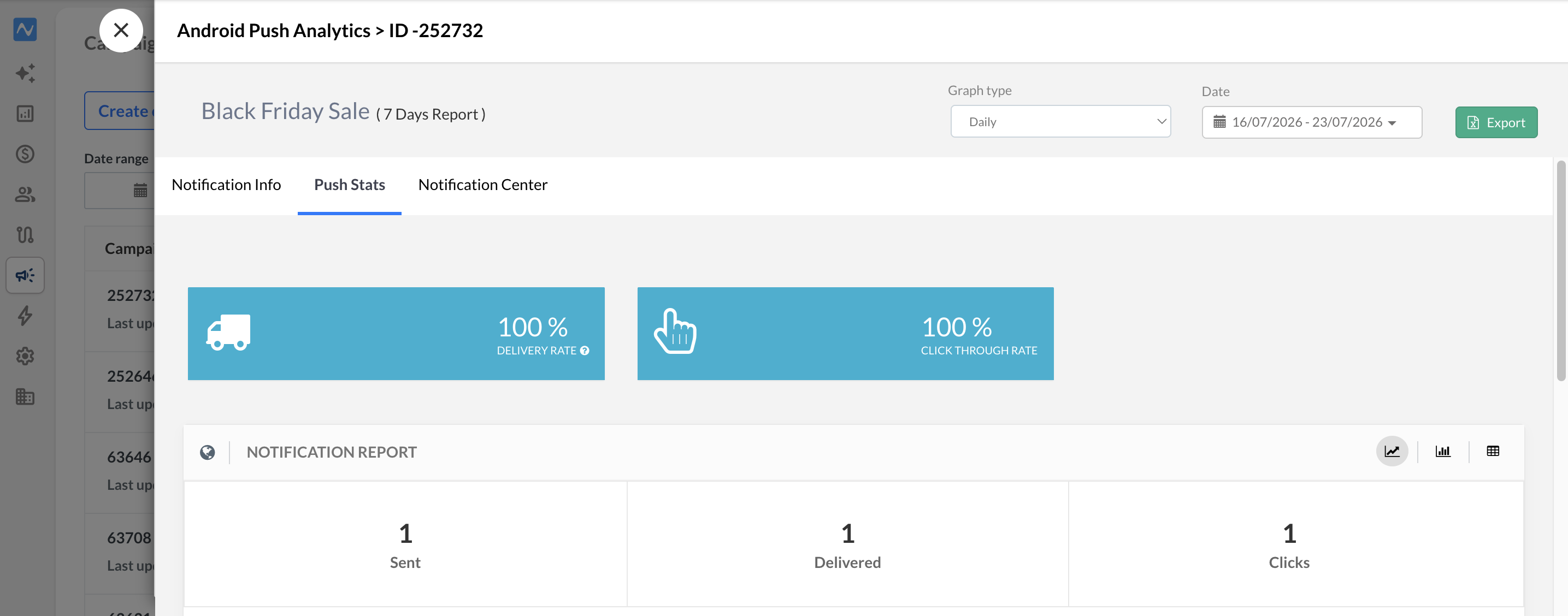
- Check delivery stats: in Campaigns, click the three-dot menu next to your test campaign and select Analytics. Open the Push Stats tab to see Sent, Delivered, and Click counts for the campaign.
Note
If the device is in one of these modes (macOS Focus, Windows Focus Assist, or Android/iOS Do Not Disturb), the notification may not appear on the device even though it is logged as delivered.
Test delivery in all three app states on mobile: foreground, background, and fully killed. They take different code paths, and a push that renders in the foreground can still fail when the app is swiped away.
7.2 Rendering
Look at what arrived, not just that something arrived:
- The icon loads. A missing icon usually means the image wasn’t uploaded correctly, or its link isn’t working.
- For Rich pushes, the large image renders and isn't cropped awkwardly. Windows, Android, and iOS all crop differently.
- Action buttons show the labels you set, and the labels fit.
- Android: the small icon must be white on a transparent background — Android only uses the alpha channel. A coloured small icon renders as a grey or white square. Check the status bar, not just the expanded notification.
- iOS: if the image is missing on a Rich push, your Notification Service Extension is either not added or not being invoked. The text will still arrive, which makes this easy to miss.
7.3 The click
This is the check most people skip, and it's the one that costs you traffic when it's wrong.
Tap or click the notification body.
- Web: it should open your Call to Action URL, exactly as configured. Check the address bar of the tab that opens: the right page (not your homepage, not a 404), and query parameters and UTM tags intact. If your analytics attributes push traffic through UTMs, a dropped parameter means the session gets counted as direct. If your site is already open, Chrome typically focuses that tab instead of opening a new one — both are fine, a blank tab is not.
- Android and iOS: the app should open on the correct screen, not just the home screen or the last screen you were on. This is the mobile equivalent of landing on the wrong URL, and it's the single most common app push defect. Test it from a fully killed app, because cold-start deep linking is a different code path from warm-start and frequently breaks on its own.
Click each action button separately. Rich push buttons carry their own destinations. Test each one individually — a button pointing at the campaign's main destination instead of its own is a common misconfiguration, and it's invisible until you click it.
Test with the browser or app closed.
- Web: quit the browser entirely, send another test, and click the notification from the desktop or the Android tray. It should launch the browser and open the CTA URL. This is the real-world case — your subscriber isn't on your site when the push arrives.
- Android and iOS: force-stop or swipe away the app, send another test, and tap. The app should cold-start and land on the deep-linked screen.
If the click does nothing, or lands in the wrong place:
- Safari: the redirect is handled by notifyvisitors_push/safari/click.html. Open that path directly in a browser. If it 404s, the file wasn't deployed and Safari clicks won't route.
- Chrome: the redirect is handled by the notificationclick handler inside your service worker. If you merged NVECTA's service worker with another vendor's, that handler may have been dropped or overwritten during the merge. Open Inspect > Application > Service Workers, view the registered file, and confirm the handler is present.
- Android and iOS: your app isn't reading the payload, or is reading it only when already running. Check your redirection handling against Page Redirection/Navigation, and confirm the key value pairs you set on the campaign match the keys your app expects.
7.4 Click reporting
A click that opens the right place but never appears in reporting means your delivery works and your attribution doesn't. Every campaign you run afterwards will under-report its own performance.
- Web: go to Campaigns > Web Push > Logs, find the Subscription ID you sent to, and confirm both that the notification is recorded as delivered and that your click is recorded against it.
- Android and iOS: open the campaign's analytics and check the delivery stats, CTA clicks, failures, and discards. Your test click should show up under CTA clicks. If you use the notification center, also check total clicks, inbox views, and inbox push views.
Reporting can lag by a minute or two, so refresh before you conclude it's broken.
7.5 Dismiss
Dismiss a notification without opening it. It should close cleanly, take no action, and not reappear.
On Android, also test a sticky push if you use them — confirm it behaves as intended and that the user can still clear it. A sticky notification the user can't dismiss is an uninstall trigger.
8. Test across browsers and devices
Push behaves differently per browser, per OS, and per manufacturer. One passing test on Chrome desktop doesn't cover you.
| Platform | Test on | Watch for |
|---|---|---|
| Web | Chrome desktop | Baseline. Confirm click routing while the browser is closed. |
| m-site | Chrome Android | Image cropping; clicks launching the browser from the tray. |
| Web | Safari macOS | Certificates; click.html routing. Rich content support is limited. |
| m-site | Safari iOS | Only works if the site is installed to the Home Screen as a PWA. |
| Web | Firefox desktop | Requires a click before the native prompt appears. |
| Web | Edge desktop | Chromium-based; behaves like Chrome but confirm anyway. |
| Android | Stock Android (Pixel or similar) | Baseline. Channel assignment; small icon rendering. |
| Android | Android 13+ | Runtime permission flow; denial handling. |
| Android | A Xiaomi, Oppo, Vivo, or similar device | Battery optimisation and autostart blocking delivery. |
| iOS | Physical device, debug build | Sandbox APNS environment. |
| iOS | Physical device, TestFlight build | Production APNS environment. Test both — they fail independently. |
Skip the platforms you haven't enabled. Test every one you have.
9. Go live
Web: go to Settings > Web Push > Targeting Rules > URL Rules and remove the nv=test condition. The permission prompt now shows to all visitors according to your remaining targeting rules.
Android and iOS: confirm your production build is signed and configured for the production push environment, and that the credentials in Settings > App Push match it.
On every platform, send one Standard and one Rich campaign to a small segment first, and check the click-through rate in reporting before you send to your full list.
Reset your test subscription
You only get asked for permission once. To test the prompt again after you've already answered it:
Web — clear the site permission, then unregister the service worker:
- Chrome / Edge — go to chrome://settings/content/notifications, find your site under Allowed or Blocked, and remove it. Then unregister the service worker in Inspect > Application > Service Workers and hard-reload.
- Firefox — Settings > Privacy & Security > Permissions > Notifications > Settings, remove your site.
- Safari — Safari > Settings > Websites > Notifications, remove your site.
An Incognito or private window is quicker for a one-off check, but some browsers restrict service workers there, so use it for prompt testing rather than delivery testing.
Android — clear the app's data from Settings > Apps > [your app] > Storage, or uninstall and reinstall. Either resets the permission state and forces a fresh token.
iOS — delete the app and reinstall. There's no way to reset notification permission without removing the app. Note that reinstalling generates a new APNS token, so your old ID may no longer be the one to send to — re-check App Push > iOS Subscribers.
Troubleshooting
| Symptom | Platform | Likely cause |
|---|---|---|
| Prompt never appears | Web | Test parameter stripped by your app; permission already answered; snippet missing on that page |
| Prompt never appears | Android | App targets below API 33, so no runtime prompt; permission already granted or twice denied |
| Allowed, but no subscriber | Web | Service worker not registered; file not reachable at your site root |
| Allowed, but no subscriber | Android / iOS | SDK not initialised; FCM or APNS credentials missing in Settings > App Push |
| Push not delivered | Web | Wrong Target browser for the Subscription ID; OS Focus mode suppressing it |
| Push not delivered | Android | Notification channel missing; OEM battery or autostart restriction; Mismatch SenderID |
| Push not delivered | iOS | Sandbox vs production environment mismatch; expired certificate; testing on Simulator |
| Delivered but no image | Web | Image URL not publicly reachable, or served over HTTP |
| Delivered but no image | iOS | Notification Service Extension missing or not invoked |
| Small icon is a grey square | Android | Icon isn't white on a transparent background |
| Click does nothing | Web | Missing click.html (Safari); notificationclick handler lost in a merged service worker (Chrome) |
| Click opens the app but the wrong screen | Android / iOS | Deep link payload not handled on cold start; key value pairs don't match what the app reads |
| Click works but isn't reported | All | Attribution issue — refresh reporting after a short delay before escalating |
| Safari second prompt missing | Web | CK.pem or .p12 certificate invalid or expired. Safari certificates last one year. |
Full guides: Web Push Troubleshooting · Android Push Troubleshooting · iOS Push Troubleshooting
Was this article helpful?
That’s Great!
Thank you for your feedback
Sorry! We couldn't be helpful
Thank you for your feedback
Feedback sent
We appreciate your effort and will try to fix the article