Quick summary
This article explains what attribution tracking is, how the attribution models in NVECTA split credit for conversions and revenue, and how to use the ready-made attribution reports in Insights: ROAS attribution, marketing campaign attribution and traffic attribution. By the end, you will know which ads, traffic sources and campaigns bring in your conversions, and how much revenue each one drives.
What is attribution tracking?
Customers rarely convert after a single interaction. A shopper might click a WhatsApp message, open a cart reminder email a few days later and finally buy after tapping a push notification. Each of these interactions is a touchpoint. Attribution tracking records these touchpoints and decides how much credit each one gets for the conversion and the revenue that follows.
Without attribution, you only know that an order happened. With it, you can answer questions such as:
- Which ad source or ad campaign brings back the most revenue for every rupee spent?
- Which UTM sources and mediums bring visitors who actually buy?
- Which NVECTA campaigns and channels drive orders, and which ones only assist?
- Does a channel close sales on its own, or does it help other channels close them?
Key terms
- Touchpoint: an interaction that can receive credit for a conversion, such as a visit from a UTM-tagged link, a click on an ad or an engagement with an NVECTA campaign, such as an email open or a push click.
- Conversion event: the event you want to credit, such as a purchase or a sign-up. For revenue reporting, this is the event you map in Revenue Mapping.
- Attribution model: the rule that decides how credit is split between touchpoints.
- Lookback window: how far back from the conversion NVECTA looks for touchpoints. Touchpoints older than the window get no credit.
- Attributed by: the dimension that credit is reported against, such as UTM Source, Ad Source or Channel.
- Assisted conversion: a conversion that a touchpoint took part in without being the last touch.
How attribution tracking works in NVECTA
NVECTA connects a conversion to the touchpoints behind it in four steps:
- Touchpoints are captured. When a visitor lands from a tagged link, NVECTA reads the UTM parameters and records the source of the visit. Ad data synced from your ad accounts and interactions with NVECTA campaigns are recorded too. To learn how sources and UTM values are read, see Understanding Traffic Sources and UTM Parameters.
- The user is identified. When the visitor logs in, signs up or checks out, their earlier anonymous activity is merged into their profile, so the touchpoints from those sessions stay with the same person. See User Identification & Profile Merging.
- The conversion is recorded. The conversion event, such as an order with its amount, is tracked against the user. Mapping it as a revenue event lets reports show transactions and revenue. See Configure Conversion Tracking.
- Credit is assigned. When you open a report, NVECTA looks back over the lookback window, applies the attribution model you picked and shows the credited transactions and revenue against the Attributed by dimension.
Before you begin
- Revenue events mapped: your purchase or conversion event is mapped with its revenue attribute in Revenue > Revenue Mapping. See Configure Conversion Tracking.
- Links tagged: the links in your campaigns, social posts and partner placements carry UTM parameters.
- Ad accounts connected (ROAS reports only): spend, impressions and clicks are synced from your ad accounts through Settings > Remarketing Ads, and your ad URLs carry the tracking parameters.
- Intermediate domains excluded: payment gateways and login domains are added in Settings > Referral Exclusion, so a returning visitor keeps their original source. See Referral Exclusion.
Attribution models in NVECTA
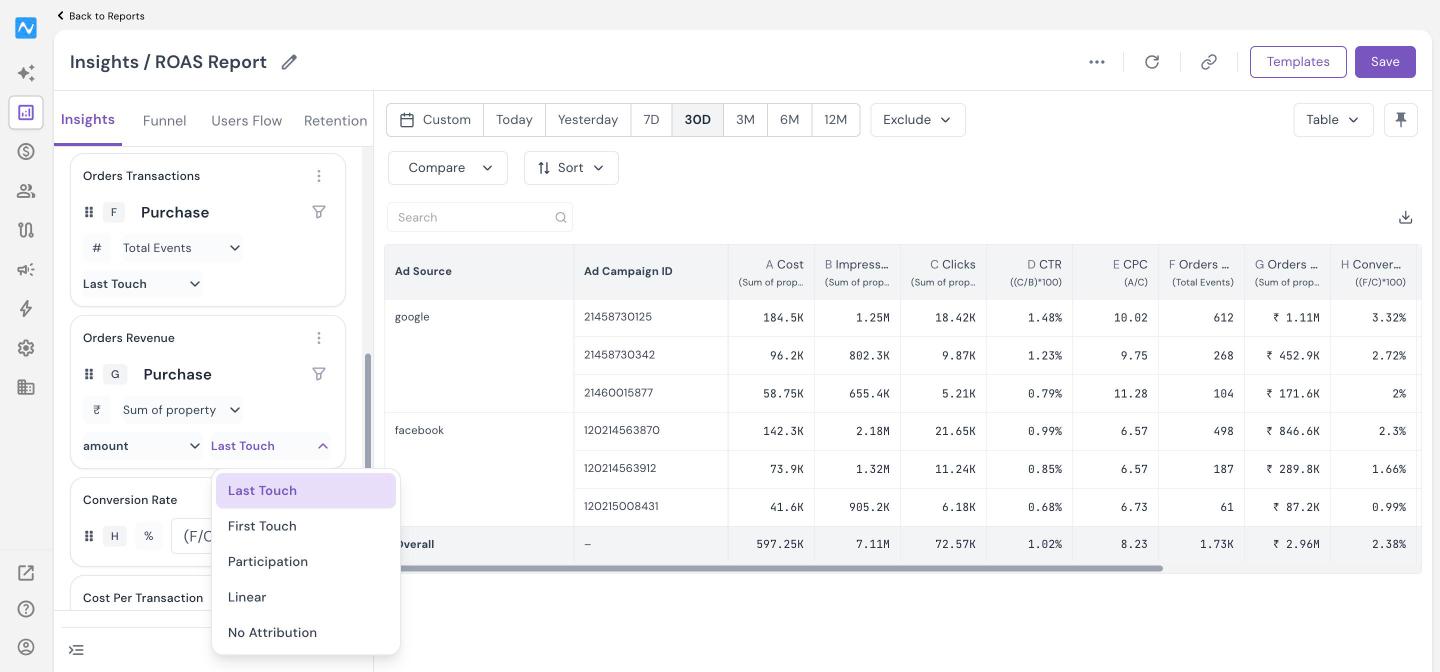
An attribution model is the rule that splits credit between touchpoints. In Insights reports, you choose the model for each conversion metric separately, from the dropdown at the bottom of the metric card.
Where: Analytics > Insights > report > Events > metric card > attribution dropdown
The dropdown offers five options:
- Last Touch: gives 100% of the credit to the last touchpoint before the conversion. The attribution templates use this model by default.
- First Touch: gives 100% of the credit to the first touchpoint inside the lookback window.
- Linear: splits the credit equally between all the touchpoints inside the lookback window.
- Participation: gives full credit to every touchpoint that took part in the conversion, so the same order can appear under several sources. Totals across rows can therefore be higher than your actual conversions or revenue.
- No Attribution: counts the event as it is, without crediting a touchpoint. The templates use it for activity metrics such as sessions.
NVECTA compares touchpoints from all NVECTA campaign channels together. Email, SMS, WhatsApp, RCS, app push and web push compete for the same conversion, and the model you pick decides which of them gets the credit.
Delivery and engagement metrics built on campaign events, such as Campaign Sent or Campaign Clicked, have no attribution dropdown, because they are counted directly against the campaign.
Example: one order under four models
A user places an order worth ₹1,200. Inside the lookback window, they had three touchpoints in this order: a WhatsApp click on day 1, an email click on day 4 and a push notification click on day 6, the day of the order. Here is how each model credits the revenue:
| Model | Push notification | Total credited | ||
|---|---|---|---|---|
| Last Touch | ₹0 | ₹0 | ₹1,200 | ₹1,200 |
| First Touch | ₹1,200 | ₹0 | ₹0 | ₹1,200 |
| Linear | ₹400 | ₹400 | ₹400 | ₹1,200 |
| Participation | ₹1,200 | ₹1,200 | ₹1,200 | ₹3,600 |
Each model tells a different story. Last Touch rewards the push notification that closed the sale, First Touch rewards the WhatsApp message that started the journey, Linear spreads the value across the journey, and Participation shows every channel that helped.
The same logic applies within one channel. If a user clicks two push campaigns before ordering, First Touch credits the first campaign and Last Touch credits the second.
Which model should you use?
| Your question | Model to use |
|---|---|
| What finally convinced the user to buy? | Last Touch |
| Which source brings new customers in? | First Touch |
| How did each step of a longer journey contribute? | Linear |
| Which channels help conversions even when they are not the last touch? | Participation, compared with Last Touch in the Attribution Models template |
Tip
Before you cut the budget of a channel that looks weak under Last Touch, check it under Participation. Channels such as email newsletters often assist conversions that another channel closes.
Lookback window
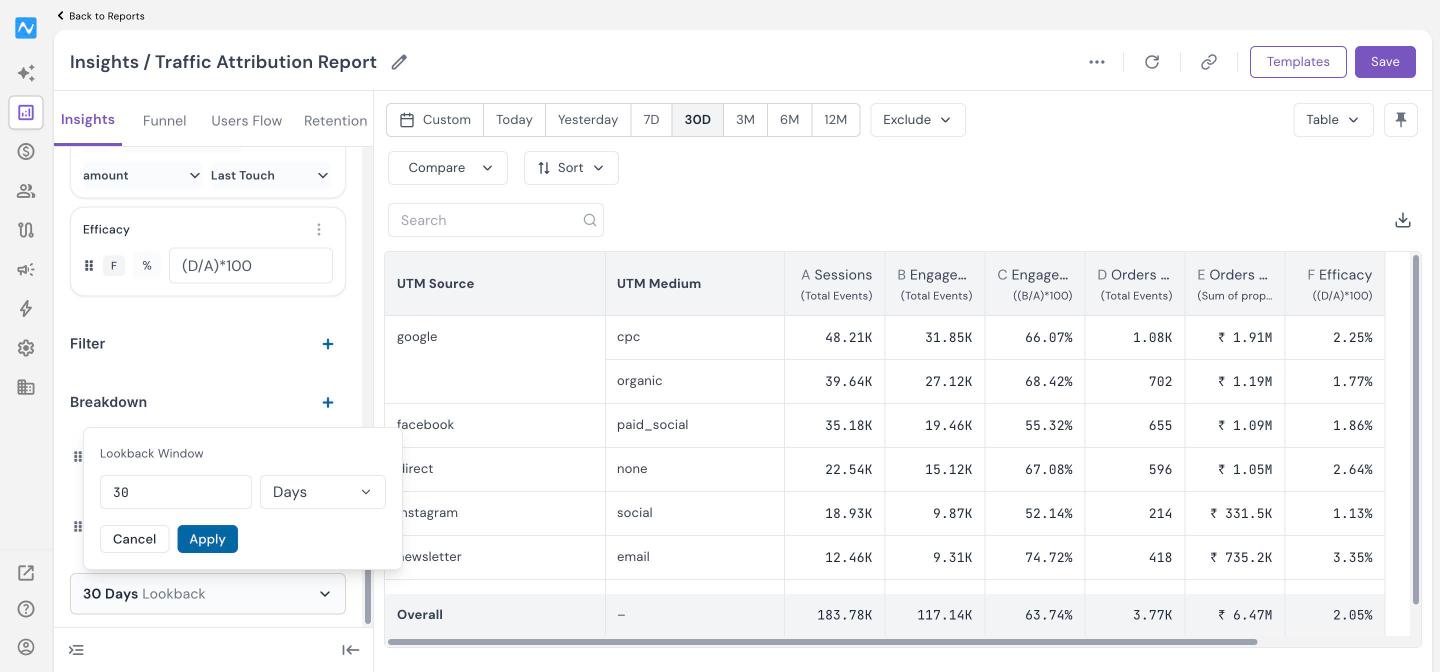
The lookback window sets how far back from each conversion NVECTA searches for touchpoints. A touchpoint outside the window gets no credit, even if it started the journey.
For example, with a 7-day window, an email click on 10 March can earn credit for orders up to 16 March. An order on 17 March does not credit that click.
Where: Analytics > Insights > report > Breakdown > Lookback
- Below Breakdown, click the lookback control. It shows the current value, for example 30 Days Lookback.
- In the Lookback Window pop-up, enter a number and choose Days or Hours.
- Click Apply.
The attribution templates open with a 30-day lookback window. Match the window to your buying cycle: a few hours or days for flash sales and push-driven offers, and 30 days or more for considered purchases such as electronics, insurance or education.
Attributed by: where the credit is reported
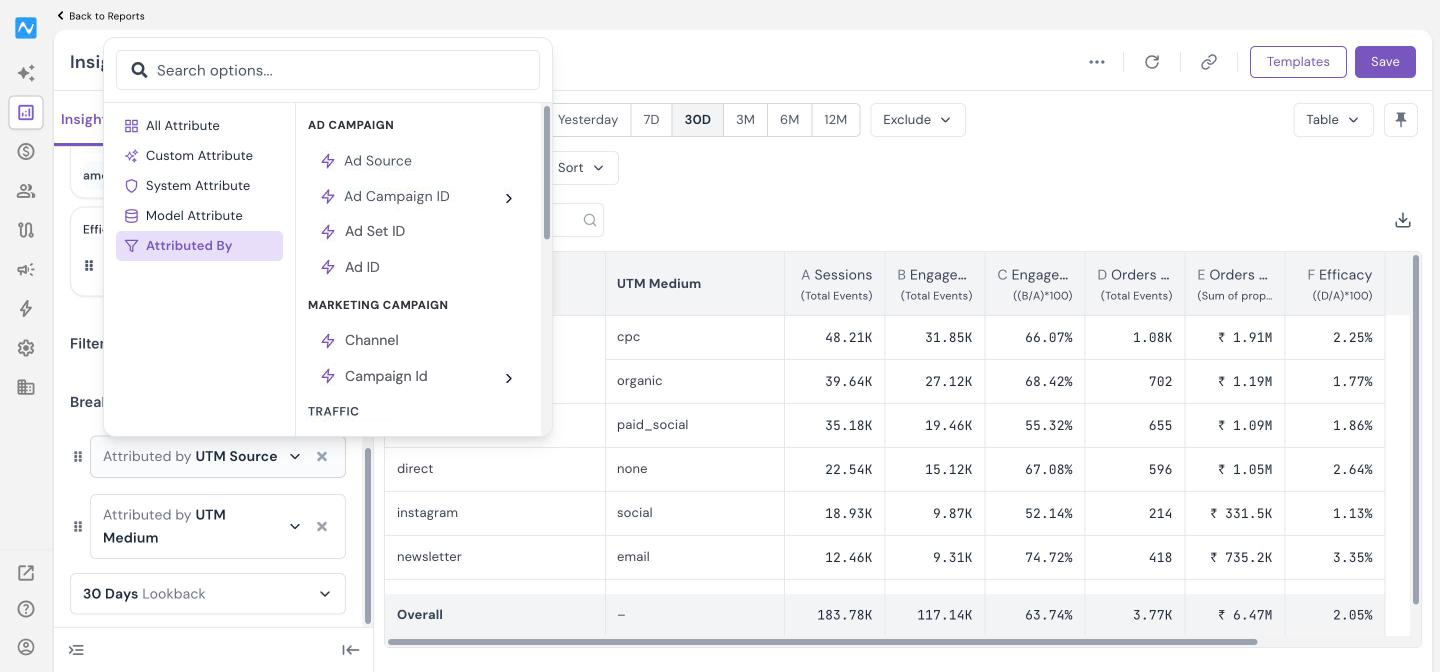
The breakdown decides what each row of the report stands for. To credit conversions to touchpoints, pick the breakdown from the Attributed By category.
Where: Analytics > Insights > report > Breakdown > + > Attributed By
| Group | Options |
|---|---|
| Ad Campaign | Ad Source, Ad Campaign ID, Ad Set ID, Ad ID |
| Marketing Campaign | Channel, Campaign Id |
| Traffic | UTM Source, UTM Medium, UTM Campaign, Manual UTM Source, Manual UTM Medium, Manual UTM Campaign, Traffic Source |
| Session | Country, City, Region, Platform, Operating System, Browser |
Attribution reports in NVECTA
NVECTA ships ready-made attribution reports as Insights templates. Each template comes with its metrics, attribution model, breakdown and lookback window already set, so you can open it, check the numbers and save it as your own report.
Templates add a Transactions metric and a Revenue metric for every revenue event mapped in your account, named after the event. For example, if your mapped event is labelled Orders, the template shows Orders Transactions and Orders Revenue. Revenue is the sum of the revenue attribute you mapped for that event.
Open an attribution template
Where: Analytics > Insights > Create New Report > Insights > Templates
- Go to Analytics > Insights.
- Click Create New Report and select Insights.
- Click Templates at the top right.
- In Choose from templates, click Preview on the report you want.
- Pick a date range (Today, Yesterday, 7D, 30D, 3M, 6M, 12M or Custom) and review the results.
- Click Save to keep the report in your list.
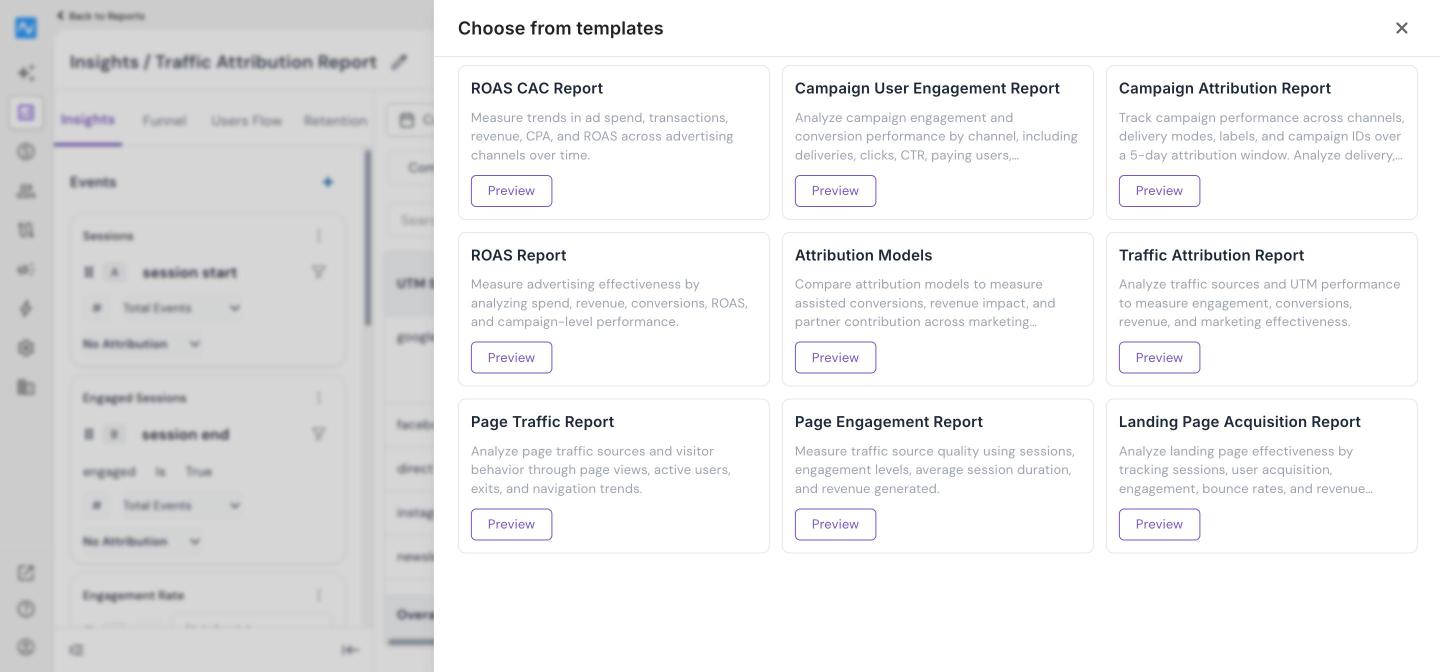
These templates cover attribution:
| Template | Use it to |
|---|---|
| ROAS Report | Measure spend, clicks, conversions, revenue and ROAS by ad source and ad campaign. |
| ROAS CAC Report | Track daily spend, cost per transaction and ROAS by ad source over time. |
| Traffic Attribution Report | Compare UTM sources and mediums on sessions, engagement, transactions and revenue. |
| Campaign Attribution Report | See delivery, engagement and attributed revenue for every NVECTA campaign, by channel. |
| Campaign User Engagement Report | Compare channels on users reached, clicks, paying users and revenue. |
| Attribution Models | Compare Last Touch with Participation to find assisted transactions and revenue. |
The same panel also offers Page Traffic Report, Page Engagement Report and Landing Page Acquisition Report for page-level traffic analysis.
ROAS attribution
ROAS (return on ad spend) attribution ties what you spend on ads to the revenue those ads bring in. It combines the Ad Data event, which holds the spend, impressions and clicks synced from your ad accounts, with your revenue event. Before you use these templates, connect your ad accounts and add the tracking parameters to your ad URLs as described in the Ad macros guide.
ROAS Report is broken down by Attributed by Ad Source and Attributed by Ad Campaign ID, with a 30-day lookback window. It includes these metrics:
| Metric | How it is calculated |
|---|---|
| Cost | Sum of ad_spend from Ad Data |
| Impressions | Sum of ad_impression from Ad Data |
| Clicks | Sum of ad_click from Ad Data |
| CTR | (Clicks ÷ Impressions) × 100 |
| CPC | Cost ÷ Clicks |
| Transactions | Count of the revenue event, Last Touch |
| Revenue | Sum of the revenue attribute, Last Touch |
| Conversion Rate | (Transactions ÷ Clicks) × 100 |
| Cost Per Transaction | Cost ÷ Transactions |
| ROAS | Revenue ÷ Cost |
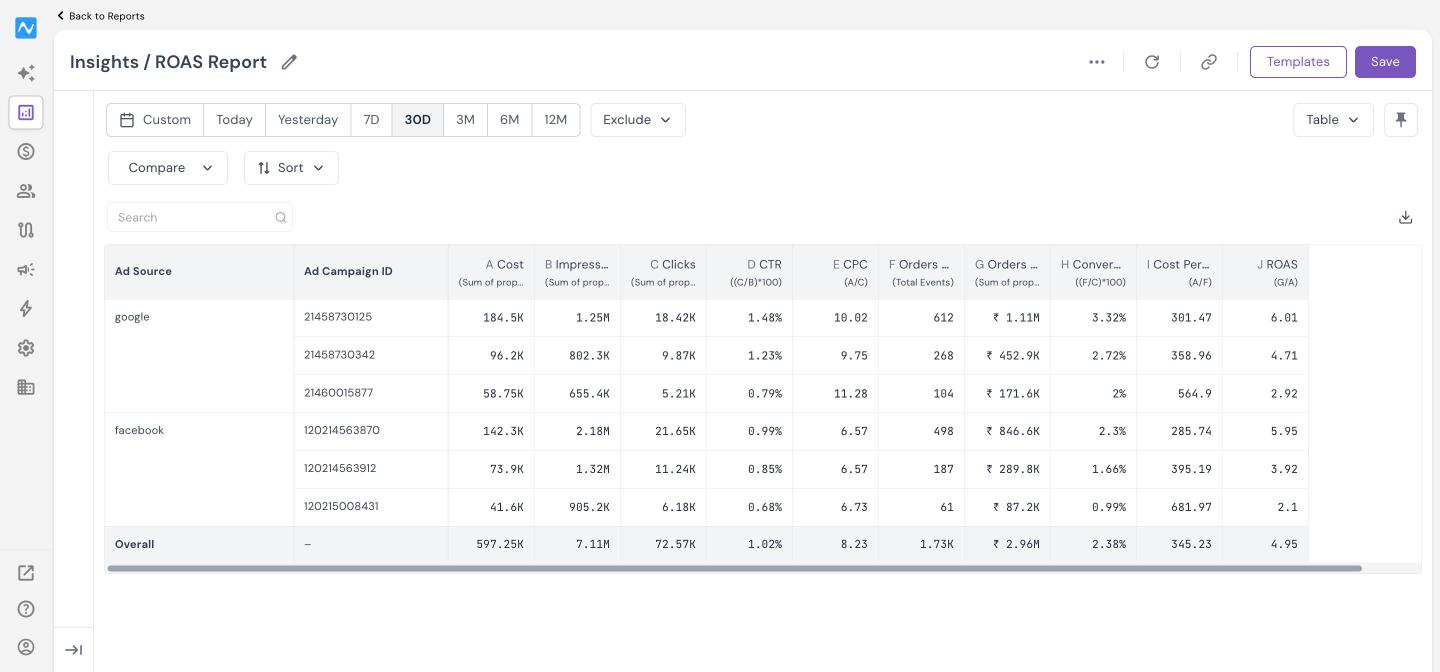
How to read it: a ROAS of 4 means every ₹1 spent on that ad source or campaign brought back ₹4 of attributed revenue. Compare Cost Per Transaction across campaigns to find the ones that convert cheaply. A campaign with a healthy CTR but a low Conversion Rate is getting clicks that do not turn into orders, so look at its landing page and offer.
ROAS CAC Report shows the same story as a daily line chart, broken down by Attributed by Ad Source. It includes Cost, Transactions, Revenue, Cost Per Transaction (Cost ÷ Transactions) and ROAS (Revenue ÷ Cost). Use it to spot days when spend went up but revenue did not follow.
Marketing campaign attribution
Marketing campaign attribution shows how the campaigns you send from NVECTA perform, from delivery all the way to revenue. Delivery and engagement metrics are counted directly on each campaign, while transactions and revenue are credited through the attribution model.
NVECTA can credit campaign engagement with open-based or click-based logic. The table shows which action counts as a touchpoint for each channel under each logic.
| Channel | Open-based logic | Click-based logic |
|---|---|---|
| Open or click | Click | |
| SMS | Click | Click |
| Web push | Click | Click |
| App push | Click | Click |
| RCS | Read or click | Click |
| Read or click | Click |
Note
Push notifications have no open or read action. Web push, Android and iOS notifications are therefore credited only on clicks, under both open-based and click-based logic.
Credit always goes to the channel of the event that the model picks. For example, if the last eligible event before an order is a WhatsApp read, Last Touch credits WhatsApp.
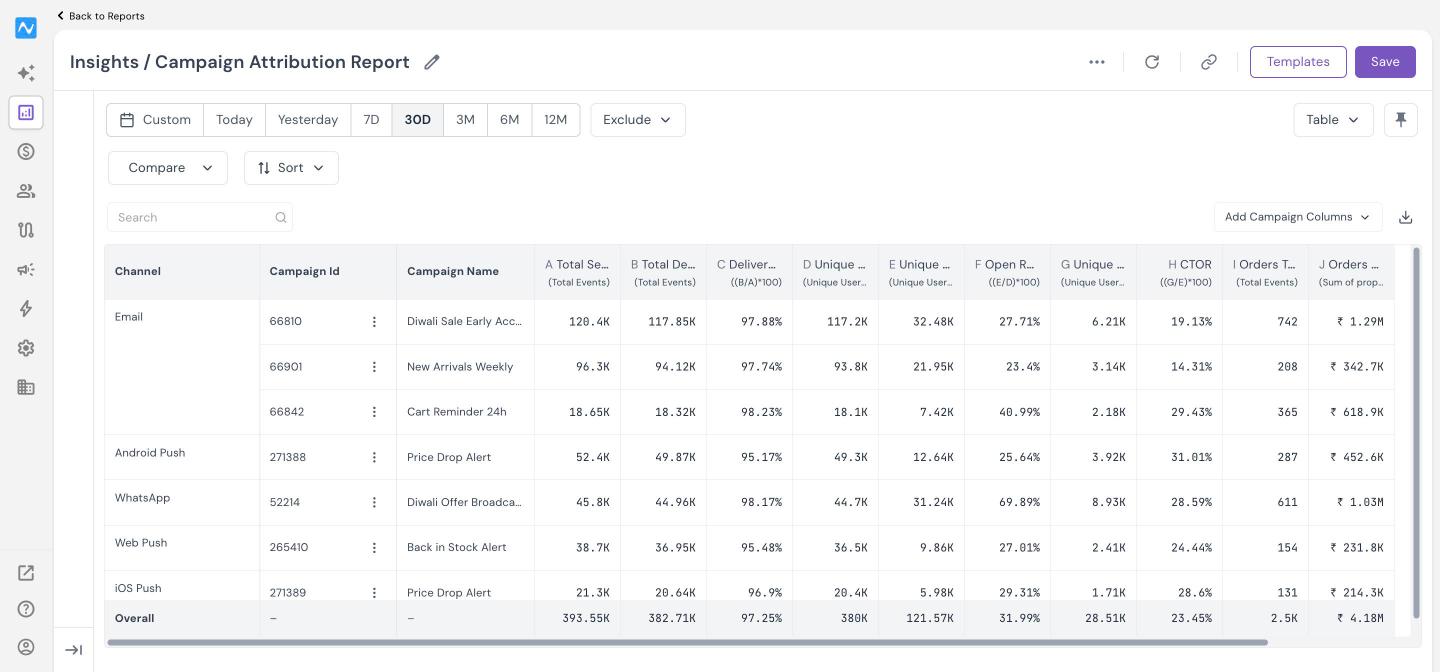
Campaign Attribution Report is broken down by Attributed by Channel and Attributed by Campaign Id, with a 30-day lookback window. It includes these metrics:
| Metric | How it is calculated |
|---|---|
| Total Sent | Count of Campaign Sent events |
| Total Delivered | Count of Campaign Delivered events |
| Delivery Rate | (Total Delivered ÷ Total Sent) × 100 |
| Unique Delivers | Unique users with a Campaign Delivered event |
| Unique Opens | Unique users with a Campaign Opened event |
| Open Rate | (Unique Opens ÷ Unique Delivers) × 100 |
| Unique clicks | Unique users with a Campaign Clicked event |
| CTOR | (Unique clicks ÷ Unique Opens) × 100 |
| Total Transactions | Count of the revenue event, Last Touch |
| Total Revenue | Sum of the revenue attribute, Last Touch |
The results table lists each Channel, Campaign Id and Campaign Name. Click Add Campaign Columns to add details such as Delivery Method, Label, Segment ID, Journey ID, Sender Address / Sender ID, Subject Line / Push Title, Content, CTA Text, CTA URL, Sent on and Created On. Use Search to find a campaign quickly.
How to read it: sort by revenue to find the campaigns that pay off, then compare their Open Rate and CTOR with weaker campaigns to see whether the gap comes from the subject line or the content.
Campaign User Engagement Report compares channels on reach and revenue. It is broken down by Attributed by Channel and includes Total Campaigns (distinct campaigns sent), Total Delivered, Unique Users Engaged, Delivers Per User (Total Delivered ÷ Unique Users Engaged), Unique Users Clicked, CTR ((Unique Users Clicked ÷ Unique Users Engaged) × 100), and the Paying Users, Transactions and Revenue for each revenue event, all on Last Touch.
Traffic attribution
Traffic attribution shows which sources bring visitors who engage and buy. It credits conversions to the UTM values and traffic sources of the user's visits, using the attribution model set on each metric.
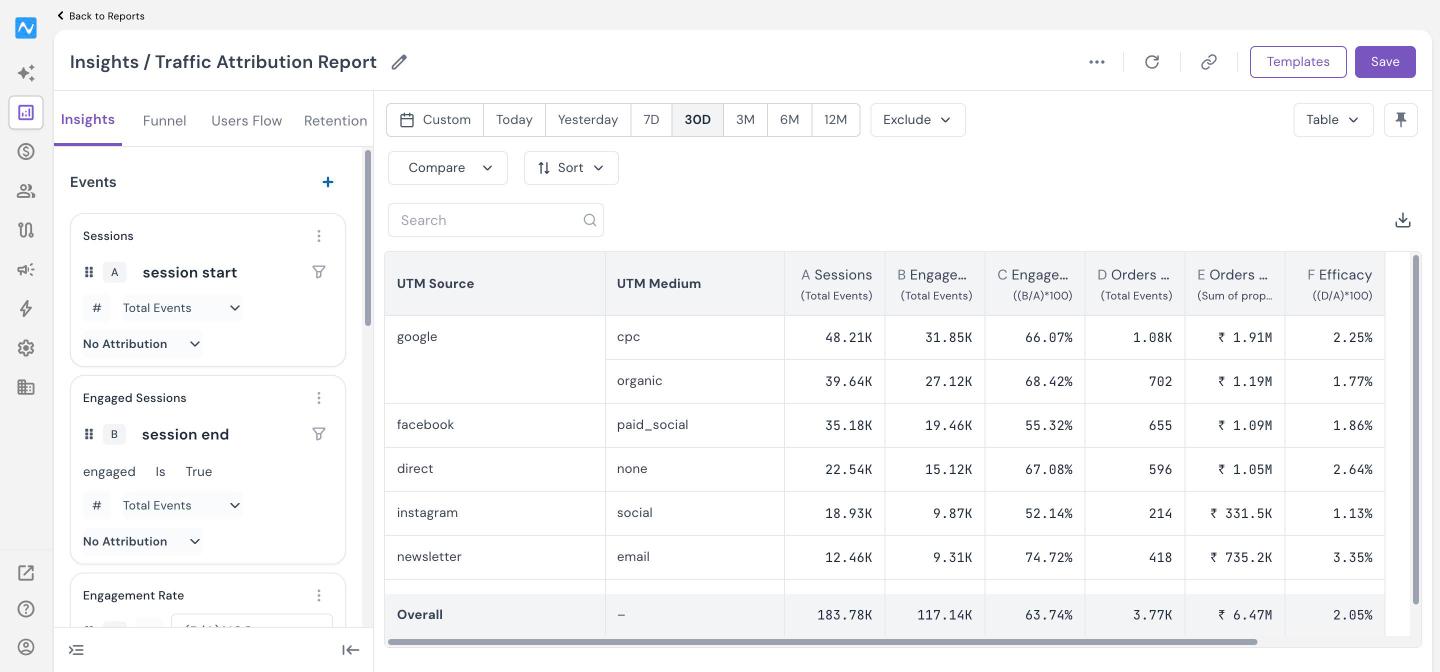
Traffic Attribution Report is broken down by Attributed by UTM Source and Attributed by UTM Medium, with a 30-day lookback window. It includes these metrics:
| Metric | How it is calculated |
|---|---|
| Sessions | Count of session start events, No Attribution |
| Engaged Sessions | Count of session end events where engaged is True, No Attribution |
| Engagement Rate | (Engaged Sessions ÷ Sessions) × 100 |
| Transactions | Count of the revenue event, Last Touch |
| Revenue | Sum of the revenue attribute, Last Touch |
| Efficacy | (Transactions ÷ Sessions) × 100 |
How to read it: a source with many sessions but a low Engagement Rate is bringing the wrong audience. A source with a high Efficacy turns its visits into orders well and is a good candidate for more budget. To go deeper, swap UTM Medium for UTM Campaign or Traffic Source in the breakdown.
Tip
If a payment gateway or login domain shows up as a source, add it in Settings > Referral Exclusion so the original source keeps the credit.
Compare models with the Attribution Models template
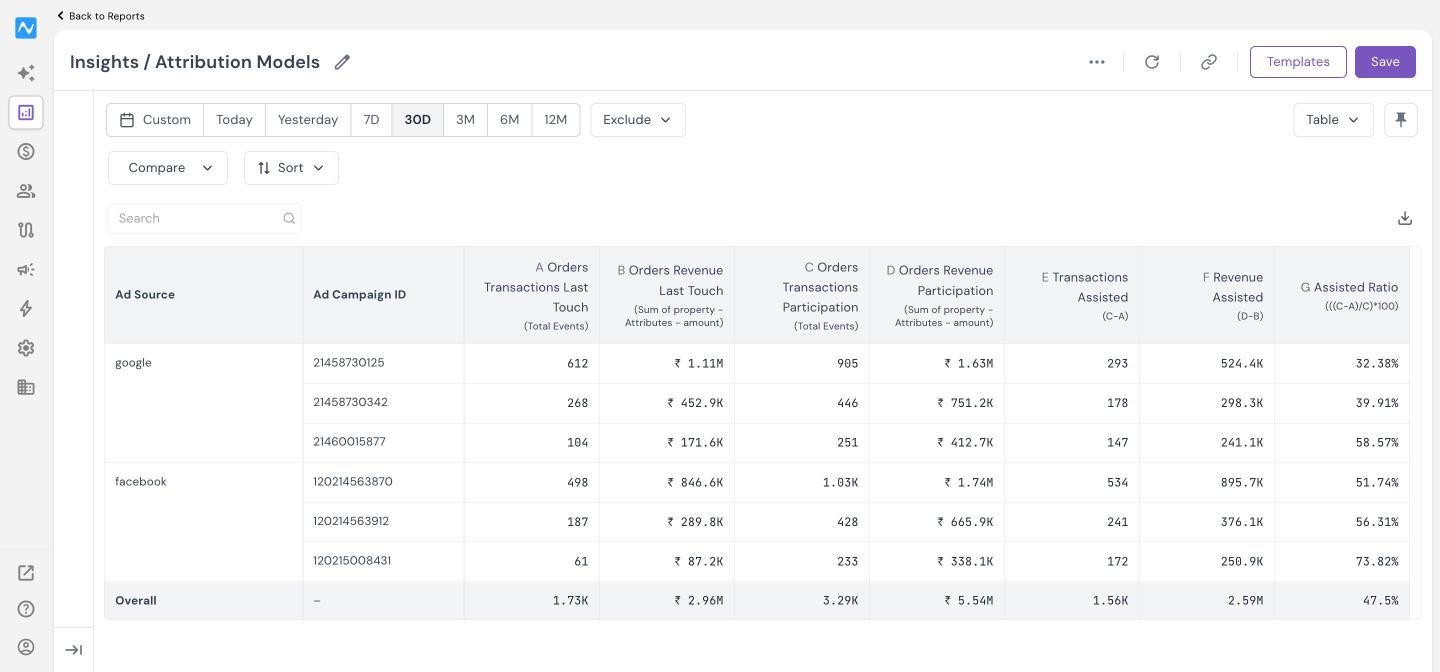
The Attribution Models template puts Last Touch and Participation side by side for each revenue event and works out how much of the result comes from assists. It is broken down by Attributed by Ad Source and Attributed by Ad Campaign ID, with a 30-day lookback window.
| Metric | How it is calculated |
|---|---|
| Transactions Last Touch | Count of the revenue event, Last Touch |
| Revenue Last Touch | Sum of the revenue attribute, Last Touch |
| Transactions Participation | Count of the revenue event, Participation |
| Revenue Participation | Sum of the revenue attribute, Participation |
| Transactions Assisted | Transactions Participation minus Transactions Last Touch |
| Revenue Assisted | Revenue Participation minus Revenue Last Touch |
| Assisted Ratio | (Transactions Assisted ÷ Transactions Participation) × 100 |
How to read it: say an ad source took part in 50 transactions and was the last touch in 20 of them. Its Transactions Assisted is 30 and its Assisted Ratio is 60%. That source mostly helps other ad sources close the sale, so judging it on Last Touch alone would undervalue it. To run the same comparison for your campaigns or traffic sources, switch the breakdown to Channel or UTM Source.
Customise an attribution report
Every template is a normal Insights report, so you can adjust it to your own questions:
- Change the model: click the attribution dropdown on a conversion metric and pick Last Touch, First Touch, Participation, Linear or No Attribution.
- Change the breakdown: click an Attributed by row to switch it, click + next to Breakdown to add another, or click the cross on a row to remove it.
- Change the lookback window: click the lookback control below the breakdown and apply a new value.
- Narrow the data: click + next to Filter to limit the report to the users or events you care about.
- Change the view: use the date range buttons, Compare, Sort and the chart type dropdown, for example Table or Line.
- Keep your version: click Save.
Best practices
- Use one naming convention for UTM values: if the same source is tagged as facebook in one place and fb or meta in another, it splits into separate rows and each looks smaller than it is.
- Match the lookback window to your sales cycle: a window that is too short misses the touchpoints that started the journey, and one that is too long credits interactions the user has long forgotten.
- Do not add up Participation rows: one order is credited to every touchpoint, so the sum of the rows is higher than your real revenue.
- Compare models before moving budget: check a channel under Last Touch and Participation, or open the Attribution Models template, before you cut or scale it.
- Keep Revenue Mapping up to date: when you start tracking a new purchase or subscription event, map it so the templates pick it up.
Where to find attribution in NVECTA
| What you want to see or change | Where |
|---|---|
| Attribution templates | Analytics > Insights > Create New Report > Insights > Templates |
| Attribution model of a metric | Dropdown at the bottom of the metric card in an Insights report |
| Lookback window | Lookback control below Breakdown in an Insights report |
| Revenue events and their revenue attribute | Revenue > Revenue Mapping |
| Domains that should not count as referrals | Settings > Referral Exclusion |
| Ad account sync for ROAS | Settings > Remarketing Ads |
Conclusion
Attribution tracking shows which ads, traffic sources and campaigns actually move your revenue. Start with the ROAS, Traffic Attribution and Campaign Attribution templates on Last Touch, then use the Attribution Models template and the other models to see which sources assist your conversions within each report before you shift budget.
Was this article helpful?
That’s Great!
Thank you for your feedback
Sorry! We couldn't be helpful
Thank you for your feedback
Feedback sent
We appreciate your effort and will try to fix the article